

A Must-Read Before Your First Print Order: 5 Common Artwork Mistakes Designers Make and How to Avoid Them Completely
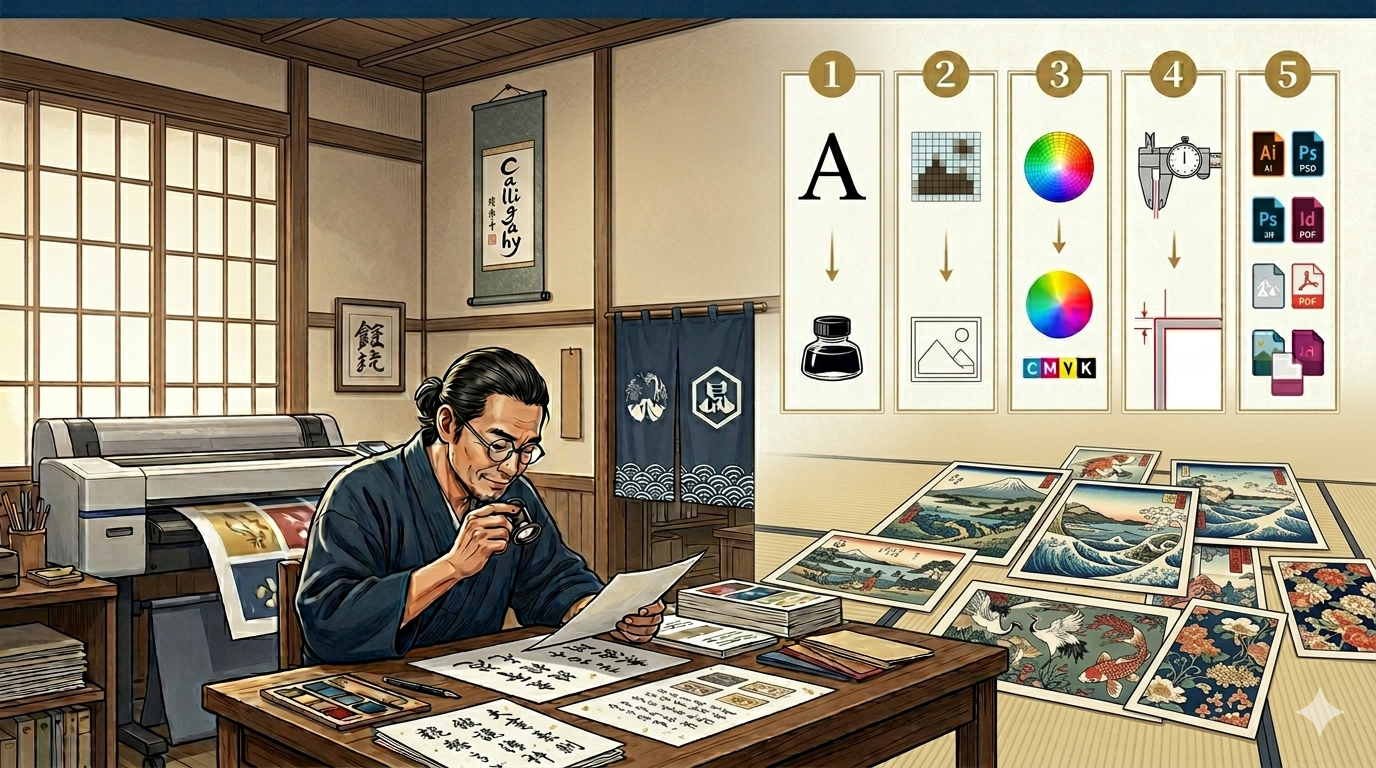
Whether it's business card printing, DM flyer printing, poster printing, or color catalog printing, the moment a designer hands over the final artwork is often what determines the quality of the finished piece. A seemingly small spec error can repeat across thousands of copies, causing damage that can't be undone.
This article compiles the five most common artwork problems print shops encounter during file intake, each with specific causes, consequences, and corrections. If you're placing your first print order, go through this checklist before submitting.
Artwork Mistake 1: Submitting Files in RGB Color Mode
Screens use RGB color mode (red, green, blue light primaries) to display colors. Printing presses use CMYK (cyan, magenta, yellow, black inks) to reproduce them. The two have different color gamuts — colors that look vivid on an RGB screen cannot always be fully reproduced in CMYK print.
Consequence
When an RGB file is submitted, the RIP system automatically converts it to CMYK — without notifying the designer of any color shifts. The printed result may look noticeably different from the original design.
How to Fix It
-
In Adobe Illustrator, InDesign, or Photoshop, select CMYK color mode when creating a new document
-
If the design is already complete, compare the color profile before converting and check how key color values shift after conversion
-
If using Pantone spot colors, note them clearly in the artwork and confirm with the printer whether they can be accommodated
Artwork Mistake 2: Insufficient or Missing Bleed
Printed sheets are never cut with millimeter-perfect precision. Even the most precise guillotine cutters carry a tolerance of 0.1 to 0.3mm. If a designer hasn't added sufficient bleed beyond the edge of the layout, the cut piece may reveal a white edge that breaks the visual integrity of the finished product.
Consequence
The margin for error accumulates across three separate stages of production. During printing, different paper types, ink characteristics, and storage conditions cause paper to expand and contract. During finishing, processes such as spot varnish, board mounting, and PP or matte lamination can introduce secondary deformation through heat and pressure. Finally, cutting adds its own mechanical tolerance on top of the first two. When these three error sources compound, a layout with insufficient bleed will almost inevitably show white edges — most visibly on full-bleed solid-color backgrounds or full-bleed photo designs.
How to Fix It
-
Standard bleed: 3mm on all four sides (some printers require 5mm — confirm with your vendor)
-
Keep important text and graphic elements at least 3mm inside the trim line to avoid accidental cropping
-
Enable "show bleed area" in your design software and confirm that background elements extend to the bleed line
Artwork Mistake 3: Fonts Not Embedded or Outlined
Fonts used by a designer are not necessarily installed on the print shop's computers. If fonts are not embedded in the PDF or outlined in vector software, the print shop's system will substitute them when opening the file, causing text reflow or font distortion.
Consequence
Text distortion, font substitution, and even full layout reflow — often discovered only at the proofing stage, generating additional proofing costs.
How to Fix It
-
When exporting to PDF from Adobe InDesign or Illustrator, confirm that the font embedding option is checked
-
For vector files (AI / EPS), outline all text: select all text layers and run "Type > Create Outlines"
-
After outlining, retain the original version with live fonts as a backup for future edits
Artwork Mistake 4: Insufficient Resolution
The standard screen resolution is 72 dpi. The minimum requirement for printing is typically 300 dpi. Placing screen-quality images in print artwork results in severe blurring and jagged edges when enlarged.
Consequence
Photos, illustrations, and logos appear "plastic" or pixelated in the final product and will fail quality inspection. This is one of the most common reasons for artwork rejection in DM printing, poster printing, and business card printing.
How to Fix It
-
All placed raster images (JPG, PNG, TIFF) must be at least 300 dpi at the intended print size
-
Vector images (AI, EPS, SVG) are resolution-independent and can scale infinitely — use them whenever possible
-
In Photoshop, check resolution under Image > Image Size to confirm it meets spec
Artwork Mistake 5: Ignoring Black Settings (100K vs. Rich Black)
In CMYK, "black" comes in two forms. 100K (pure black) uses only the K ink channel and is appropriate for text and fine lines. Rich black (C60 M40 Y40 K100) layers multiple ink channels to produce a deeper, more saturated black, suited for large solid black areas. Using 100K on a large black background produces a washed-out, grayish look. Using rich black on small text causes multi-channel misregistration that blurs text edges (ghosting).
Consequence
This mistake is especially common in business card printing and poster printing with black backgrounds, and it compromises both the overall finish quality and text legibility.
How to Fix It
-
Text and fine lines: use 100K (C0 M0 Y0 K100)
-
Large black areas: use rich black (recommended: C60 M40 Y40 K100)
-
Before submitting, review color settings to confirm the black values for each element are correct
Quick Reference: 5 Common Artwork Mistakes
| Mistake | Typical Symptom | Fix |
|---|---|---|
| RGB color mode | Printed colors shift from design | Switch to CMYK, verify color values |
| Insufficient bleed | White edge after cutting | 3mm bleed on all four sides |
| Unprocessed fonts | Font substitution / layout reflow | Embed fonts in PDF or outline in vector file |
| Low resolution | Blurry, jagged images | Raster images at 300 dpi minimum |
| Wrong black setting | Gray-looking black / ghosting text | Text: 100K; large areas: rich black |
FAQ: Common Questions About Artwork Submission
Q1: I designed in Canva. Can I submit that file directly to the printer?
Q2: My design was made in Figma. Can I submit it for printing?
Q3: Will the print shop check for these problems when they receive my file?
"You've got the knowledge — now let's put it to work on your actual project."
Ready to move? Share your specs with Yeehaa and we'll confirm file requirements, material options, and a production schedule that gives your project the quality time it deserves.
📩Get Your Project Specs Confirmed by Yeehaa
Related Information
Cold Foil vs. Hot Foil: How to Choose by Material, Finish, and Cost
冷燙與熱燙怎麼選?本文從上箔原理、紙張與塑膠的材質適性、立體效果到製版與數量的成本結構,完整比較兩種金屬燙印工法,並整理常見誤區,適合設計師與品牌在規劃名片、型錄與包裝印刷時參考。
Paperboard, Corrugated, and Specialty Substrates: A Printability Comparison
A printability comparison of paperboard, corrugated, and specialty substrates: how material choice shapes print method, color, and finishing limits for packaging projects.
Why Does the Same Design Look So Different on Various Papers? The Logic of Brand Perception in Paper Selection
Same design, different paper — wildly different results. A New Taipei printing expert breaks down how coated, matte, and textured papers affect color, feel, and brand perception, plus finishing compatibility (foil stamping, spot UV) to help you choose the right stock.
【2026 Printing Proof Guide】Digital vs. Press Proof Cost Assessment & 3 Major Defense Lines to Avoid Printing Pitfalls
Digital vs. press proofing: compare costs, learn the 5-step approval SOP, and avoid 3 common printing pitfalls before your next production run.
 中文
中文